> For the complete documentation index, see [llms.txt](https://docs.borndigital.ai/llms.txt). Markdown versions of documentation pages are available by appending `.md` to page URLs; this page is available as [Markdown](https://docs.borndigital.ai/insights/workspace/design/parameters.md).
# Parameters
This module is used for creating and managing parameters that are later used by prompts.
### Types and configuration fields
The configuration is divided into **Essential** and **Advanced** tabs. For a Custom parameter, use **Essential** for **Details** and **Value**, and **Advanced** for **Settings** and **Normalization**.
#### Custom
Their purpose is to obtain data of interest as their variables from the files of the selected [Data sources](/insights/workspace/upload.md). They are later combined and used by [Prompts](/insights/workspace/design/prompts.md).
On-screen elements:
* **Type**: dropdown field with values [**Custom**](#custom) and [**Flow connector**](#flow-connector) for changing the parameter type
* Bin icon: button for the deletion of the parameter
* **Essential:**
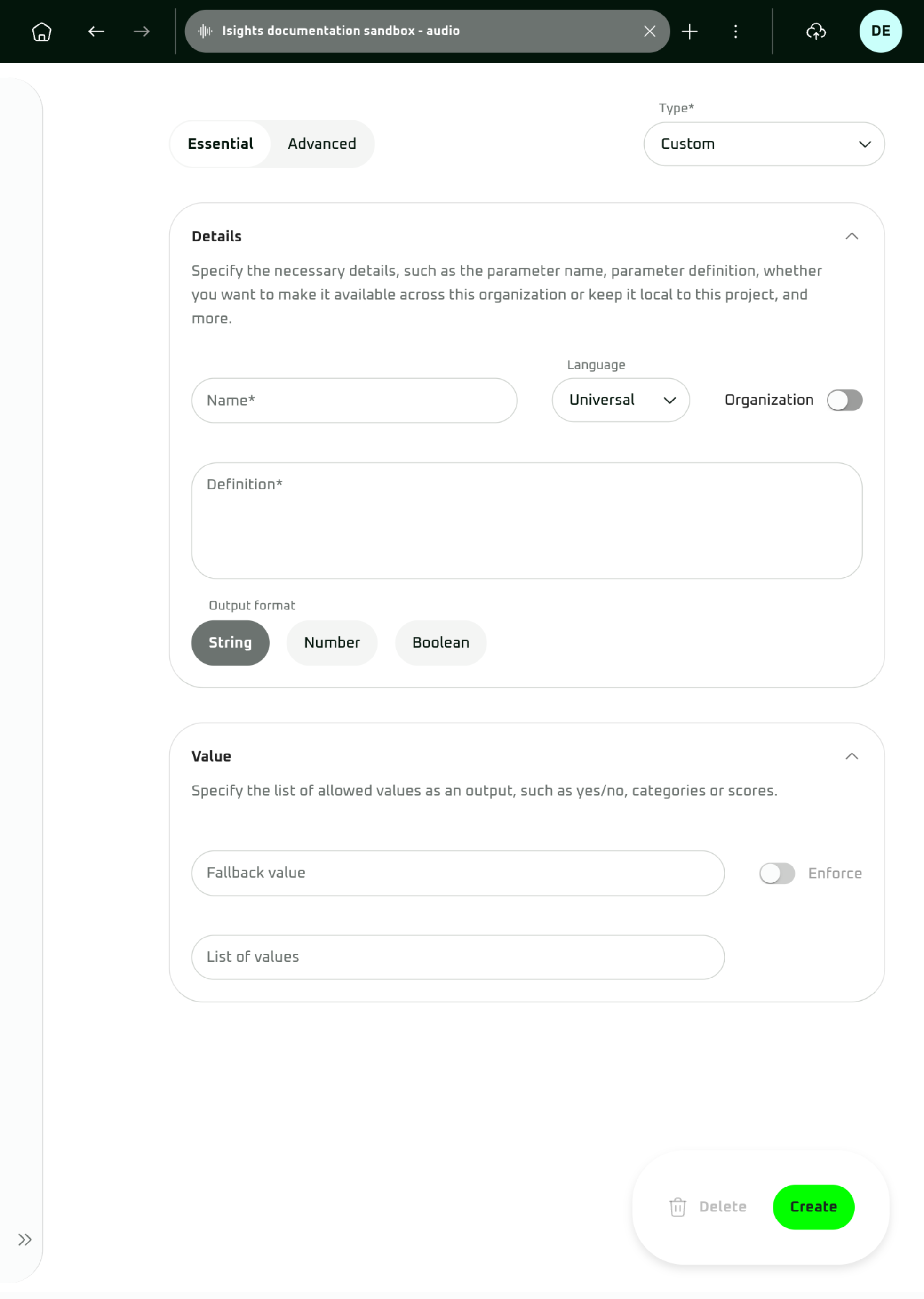
* **Details:**
* **Name**: input field of the parameter. The saved name is automatically normalized to lowercase `snake_case`.
* **Language**: dropdown field, for selecting parameter processing language. If **Universal** is selected, the model decides for itself, using the language in the instructions.
* **Organization**: switch for making the parameter available to other projects in the organization
* **Definition**: input field for a parameter instruction that is later passed as a prompt to obtain a value
* **Output format**: buttons for selecting **String** (text), **Number**, **Boolean** (`true` or `false`) or **JSON** (an object with several values)
* **Value** (availability depends on the selected **Output format**):
* **Fallback value** (String only): input field for providing a filled-in output value when the evaluation of **Definition** does not return one of the configured **List of values**
* **Enforce** (String only): switch for restricting the result to configured values and using **Fallback value** when the result does not match them. It can be enabled only when both **List of values** and **Fallback value** are populated.
* **List of values** (String and Number only): input field for defining values that should be used as an output of the **Definition** evaluation. Enter each value individually and confirm it with **Enter**.
{% hint style="info" %}
For a **Boolean** output, describe in **Definition** when the result should be `true` and when it should be `false`. For example: `Return true if the agent greeted the client. Return false otherwise.` The selected **Output format** enforces a native Boolean result, so do not add `true` and `false` to **List of values**.
Boolean results use the native JSON values `true` or `false`, without quotation marks. Values such as `0`, `1`, `"true"`, `"false"`, `YES`, and `NO` are not Boolean values.
Leave **List of values** empty and **Enforce** disabled for Boolean parameters. **Fallback value** is not applied to Boolean results. If processing is skipped because the input is empty, the result can be `null`.
If you need `0` or `1`, use **Number**. If you need `YES`, `NO`, or another state such as `NOT_FOUND`, use **String**.
{% endhint %}
{% hint style="info" %}
For a **JSON** output, describe in **Definition** the structure you expect, for example: `Return a JSON object with the key "products" containing the list of products the client asked about.` **Enforce** cannot be used with JSON, and **Multi prompt behaviour** offers only the options that keep one object whole: **FIRST**, **FIRST\_FOUND**, **LAST** and **LAST\_FOUND**. When you switch an existing parameter to JSON, other behaviours are reset.
{% endhint %}
* **Advanced:**
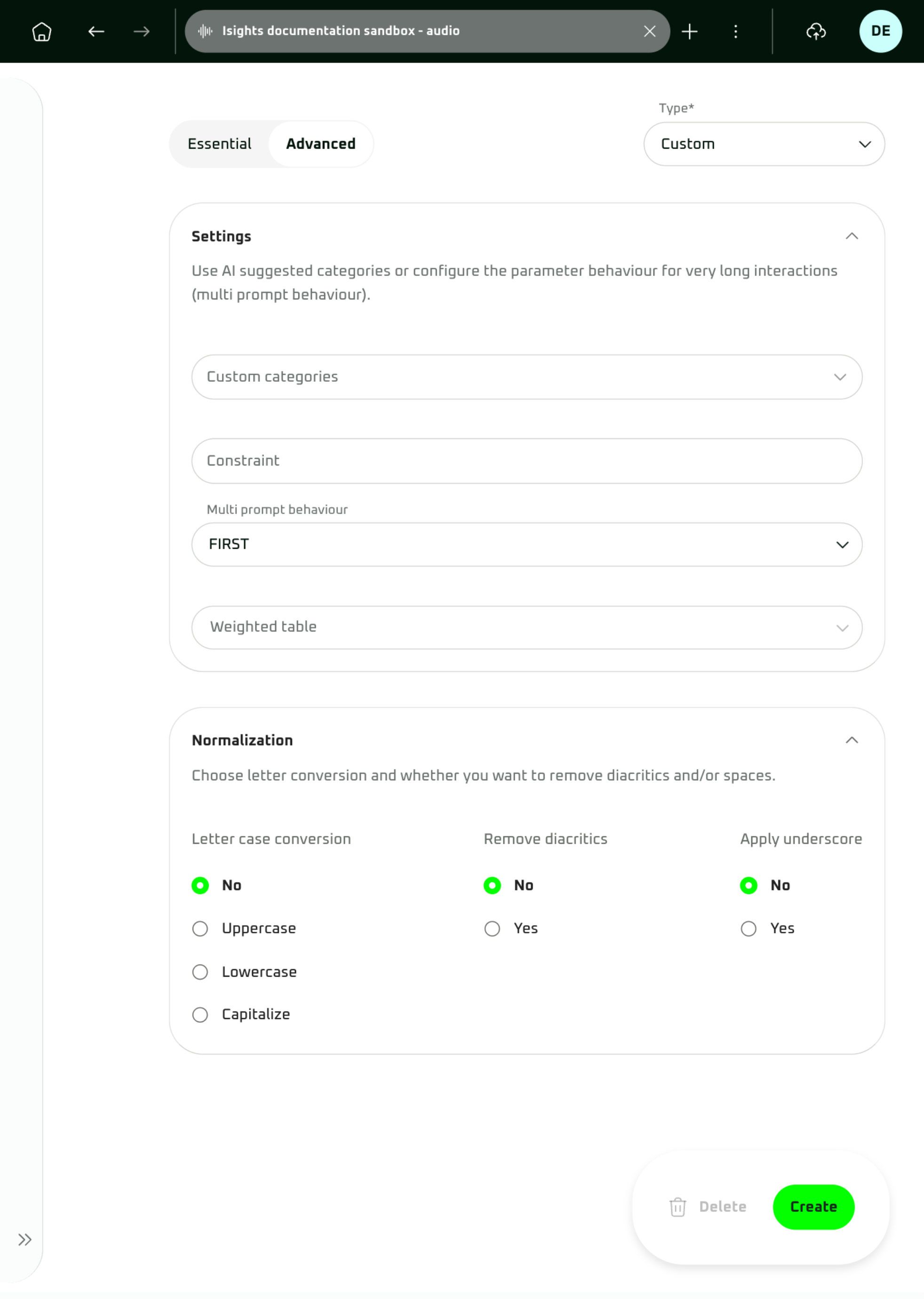
* **Settings:**
* **Custom categories**: dropdown field for selecting user-defined [Custom categories and AI category suggestions](/insights/workspace/design/categories.md). Selecting categories appends their values to **List of values**.
* **Constraint**: input field for describing the format validation of the output
* ⚙️ **Multi prompt behaviour**: dropdown field with processing strategies for aggregating results from multiple prompts, since some of the prompts used to be parsed and sent to bypass context window limits.
* ⚙️ **Weighted table**: dropdown field. It is enabled once **WEIGHTED\_VALUE** is chosen in **Multi prompt behaviour**. It displays options for how to process multi-prompt aggregation using a weighted table strategy.
{% hint style="info" %}
Multi-prompt setups break very long inputs into smaller processing segments because language models have limited context windows. This allows large documents or recordings to be processed without truncation. In the current processing setup, the input is split when its processed text reaches 110,000 characters. Each segment is processed separately, and the selected **Multi prompt behaviour** determines how the partial outputs are aggregated into a unified response.
This is relevant only for very long audio or text inputs. For Audio projects, recordings over one hour are an orientation only; the actual trigger depends on the transcription length and occurs when the processed text reaches 110,000 characters.
{% endhint %}
Context windows examples
```
GPT 5.6 (Sol, Terra, Luna): 1,050k context window, 128k output tokens
GPT 5 (all models): 400k context window, 128k output tokens
GPT 5 Mini: 400k context window, 128k output tokens
```
These examples illustrate that the available context depends on the selected model. Multi-prompt splitting uses the internal 110,000-character limit; the model context-window values above do not replace that processing limit.
* **Normalization**: settings for adjusting the parameter output
* **Letter case conversion**: radio buttons for changing the output to **Lowercased**, **Uppercased**, or **Capitalized**, or leaving it unchanged
* **Remove diacritics**: radio buttons for removing diacritics from the output value when **Yes** is selected
* **Apply underscore**: radio buttons for replacing spaces with underscores in the output value when **Yes** is selected
* **Save**: floating button for saving the settings to the parameter
#### Flow connector
Use a Flow connector to connect an Insights project with a [flow](/digital-agent/conversation-flow.md) in a [Digital Agent](/digital-agent/introduction.md) project. The flow can use insight data for further processing and return results to Insights. Consider using it if you want to, for example, classify the emails or audio recordings first, change the metadata values, add new fields, etc., before entering analytics, during the analytical processing, or for post-analytical processing once the analytics are finished.
On-screen elements:
* **Type**: dropdown field with values [**Custom**](#custom) and [**Flow connector**](#flow-connector) for changing the parameter type
* Bin icon: button for the deletion of the parameter
* **Details**:
* **Connect to project**: dropdown field for selecting a Digital Agent flow project
* **Select trained version**: dropdown field for selecting a version of the selected project
* **Name**: input field for the Flow connector name
* **Global**: switch, if enabled, the parameter can be used in the other projects within the organization
* **Definition (auto-generated)**: read-only field that displays the mapping identifier for the selected Digital Agent project version.
{% hint style="warning" %}
Consider connecting a proxy project rather than the target flow directly. The connector is bound to the selected trained version, so after you train the target project again it would still call the old version. A proxy project with a Transfer node always goes to the most recently trained version of the target. See [Add a Flow connector](https://docs.borndigital.ai/insights/workspace/design/pages/QZ1uviSahVhQQYcxA7x2#1.-prepare-the-flow).
{% endhint %}
* **Output variables**: input field for limiting which variables are returned from the connected flow. Leave it empty to return all valid named entities. If populated, only the listed variables are returned. Enter variables individually exactly as defined in Flow and confirm each with Enter.\
Example: `flow_auto_email_handling_usecase`
{% hint style="success" %}
Pro Tip:\
Send relevant data from Digital Agent back to Insights → you can then use them in your Dashboards easily.
{% endhint %}
* **Previous parameter results to flow**: switch controlling whether results already available from earlier prompts are added to the flow metadata. It does not control the main conversation input.
* If **disabled** (default), the main conversation is still sent to the flow as its input, but results from earlier prompts are not added to the flow metadata.
* If **enabled**, the main conversation is sent to the flow as its input and results from earlier prompts are also added to the flow metadata. Each result keeps its existing `_` name.
* **Send unprocessed transcript/text to flow**: switch for adding the structured raw transcript or text to the flow metadata.
* **Should process email attachments**: Text/Email-only switch for enabling email attachment processing in the flow.
* **Save**: floating button for saving the settings to the parameter
### Management
On-screen elements:
* Upper part:
* **Search parameters**: bar for searching parameters based on their name
* **+ Create**: menu for creating a **Custom** parameter or a **Flow connector**
* Filters (below search bar):
* **All**: button for displaying all parameters
* **Global**: button for displaying global parameters
* **Custom**: button for displaying non-global Custom parameters
* **Flow**: button for displaying non-global Flow connector parameters
* **Select**: enters bulk selection mode
* **Select all**: selects every parameter in the current list
* **Done**: exits bulk selection mode
* Use the available actions, such as **Duplicate** or **Delete**, for the selected parameters
* List of parameters:\
*(Elements are listed from the left)*
* **Parameter name**
* **Pencil**: icon button for editing the parameter
* **Language**: displaying selected language for the parameter processing
* **Parameter type**: displaying either **Custom** or **Flow connector**
* **Prompt preview**: displaying a value of the parameter **Definition** field
* Floating buttons:
* **Export**: for exporting all parameters in a JSON-formatted file
* **Import**: for importing parameters in a JSON-formatted file
 On-screen elements:
* **Type**: dropdown field with values [**Custom**](#custom) and [**Flow connector**](#flow-connector) for changing the parameter type
* Bin icon: button for the deletion of the parameter
* **Essential:**
* **Details:**
* **Name**: input field of the parameter. The saved name is automatically normalized to lowercase `snake_case`.
* **Language**: dropdown field, for selecting parameter processing language. If **Universal** is selected, the model decides for itself, using the language in the instructions.
* **Organization**: switch for making the parameter available to other projects in the organization
* **Definition**: input field for a parameter instruction that is later passed as a prompt to obtain a value
* **Output format**: buttons for selecting **String** (text), **Number**, **Boolean** (`true` or `false`) or **JSON** (an object with several values)
* **Value** (availability depends on the selected **Output format**):
* **Fallback value** (String only): input field for providing a filled-in output value when the evaluation of **Definition** does not return one of the configured **List of values**
* **Enforce** (String only): switch for restricting the result to configured values and using **Fallback value** when the result does not match them. It can be enabled only when both **List of values** and **Fallback value** are populated.
* **List of values** (String and Number only): input field for defining values that should be used as an output of the **Definition** evaluation. Enter each value individually and confirm it with **Enter**.
{% hint style="info" %}
For a **Boolean** output, describe in **Definition** when the result should be `true` and when it should be `false`. For example: `Return true if the agent greeted the client. Return false otherwise.` The selected **Output format** enforces a native Boolean result, so do not add `true` and `false` to **List of values**.
Boolean results use the native JSON values `true` or `false`, without quotation marks. Values such as `0`, `1`, `"true"`, `"false"`, `YES`, and `NO` are not Boolean values.
Leave **List of values** empty and **Enforce** disabled for Boolean parameters. **Fallback value** is not applied to Boolean results. If processing is skipped because the input is empty, the result can be `null`.
If you need `0` or `1`, use **Number**. If you need `YES`, `NO`, or another state such as `NOT_FOUND`, use **String**.
{% endhint %}
{% hint style="info" %}
For a **JSON** output, describe in **Definition** the structure you expect, for example: `Return a JSON object with the key "products" containing the list of products the client asked about.` **Enforce** cannot be used with JSON, and **Multi prompt behaviour** offers only the options that keep one object whole: **FIRST**, **FIRST\_FOUND**, **LAST** and **LAST\_FOUND**. When you switch an existing parameter to JSON, other behaviours are reset.
{% endhint %}
* **Advanced:**
On-screen elements:
* **Type**: dropdown field with values [**Custom**](#custom) and [**Flow connector**](#flow-connector) for changing the parameter type
* Bin icon: button for the deletion of the parameter
* **Essential:**
* **Details:**
* **Name**: input field of the parameter. The saved name is automatically normalized to lowercase `snake_case`.
* **Language**: dropdown field, for selecting parameter processing language. If **Universal** is selected, the model decides for itself, using the language in the instructions.
* **Organization**: switch for making the parameter available to other projects in the organization
* **Definition**: input field for a parameter instruction that is later passed as a prompt to obtain a value
* **Output format**: buttons for selecting **String** (text), **Number**, **Boolean** (`true` or `false`) or **JSON** (an object with several values)
* **Value** (availability depends on the selected **Output format**):
* **Fallback value** (String only): input field for providing a filled-in output value when the evaluation of **Definition** does not return one of the configured **List of values**
* **Enforce** (String only): switch for restricting the result to configured values and using **Fallback value** when the result does not match them. It can be enabled only when both **List of values** and **Fallback value** are populated.
* **List of values** (String and Number only): input field for defining values that should be used as an output of the **Definition** evaluation. Enter each value individually and confirm it with **Enter**.
{% hint style="info" %}
For a **Boolean** output, describe in **Definition** when the result should be `true` and when it should be `false`. For example: `Return true if the agent greeted the client. Return false otherwise.` The selected **Output format** enforces a native Boolean result, so do not add `true` and `false` to **List of values**.
Boolean results use the native JSON values `true` or `false`, without quotation marks. Values such as `0`, `1`, `"true"`, `"false"`, `YES`, and `NO` are not Boolean values.
Leave **List of values** empty and **Enforce** disabled for Boolean parameters. **Fallback value** is not applied to Boolean results. If processing is skipped because the input is empty, the result can be `null`.
If you need `0` or `1`, use **Number**. If you need `YES`, `NO`, or another state such as `NOT_FOUND`, use **String**.
{% endhint %}
{% hint style="info" %}
For a **JSON** output, describe in **Definition** the structure you expect, for example: `Return a JSON object with the key "products" containing the list of products the client asked about.` **Enforce** cannot be used with JSON, and **Multi prompt behaviour** offers only the options that keep one object whole: **FIRST**, **FIRST\_FOUND**, **LAST** and **LAST\_FOUND**. When you switch an existing parameter to JSON, other behaviours are reset.
{% endhint %}
* **Advanced:**

