> For the complete documentation index, see [llms.txt](https://docs.borndigital.ai/llms.txt). Markdown versions of documentation pages are available by appending `.md` to page URLs; this page is available as [Markdown](https://docs.borndigital.ai/insights/workspace/upload/data-sources-text.md).
# Data sources (Text)
This section is used for data sourcing using the manual upload option or integration with other data sources.
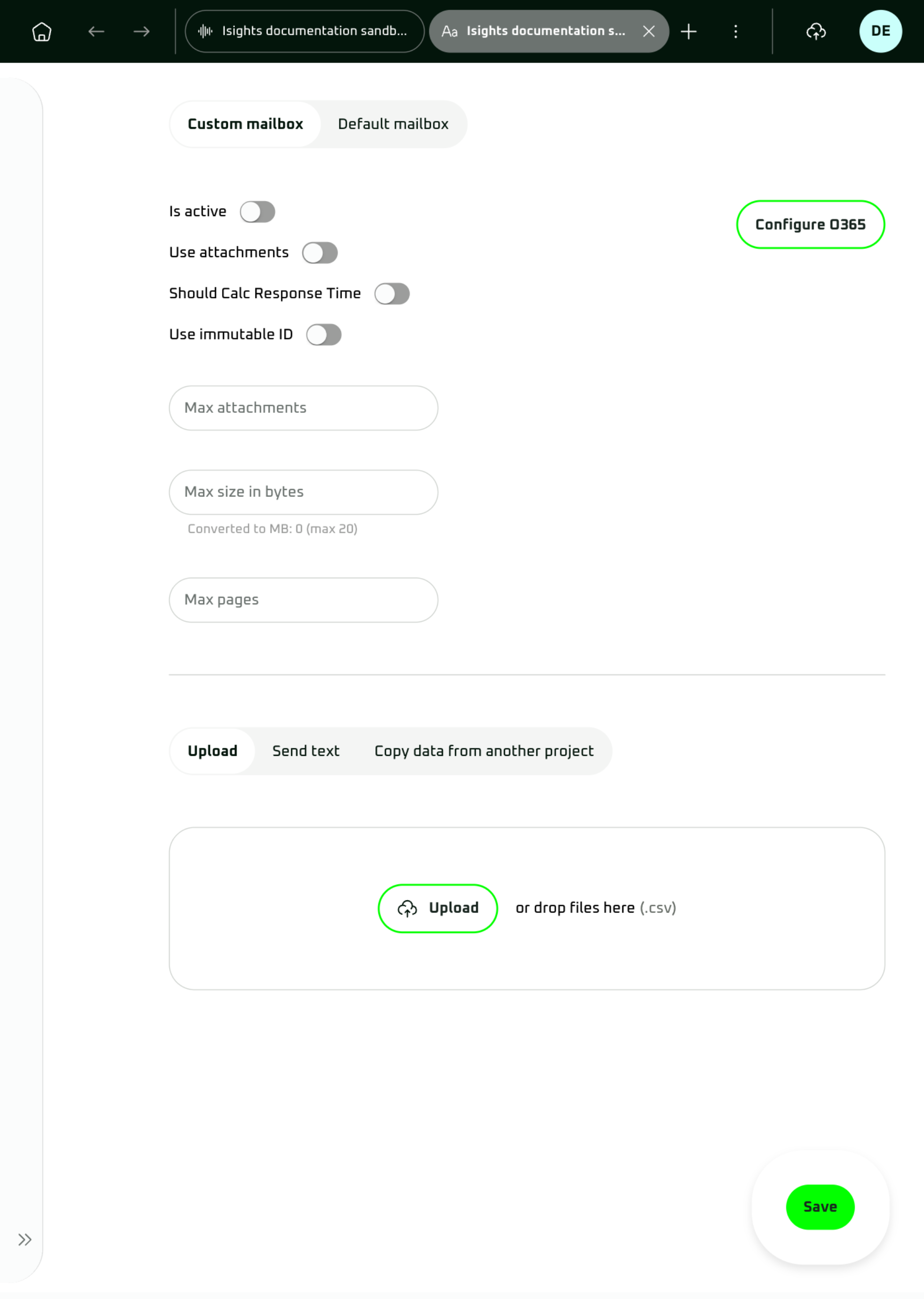
On-screen elements:
### Custom mailbox
* **Is active**: switch for enabling sourcing from the configured O365 mailbox (see **Configure O365**).
{% hint style="info" %}
Only one mailbox type can be active at a time. Activating one mailbox type automatically deactivates the other.
{% endhint %}
* **Use attachments**: switch for processing the attachments. Attachments are downloaded and made available for email attachment processing and analysis.
* **Max attachments**: input field for capping the number of attachments that can be downloaded
* **Max size in bytes**: input field for limiting the size of one attachment. The maximum permitted size is 20 MB.
* **Max pages**: input field for capping the number of pages of one attachment.
* **Should Calc Response Time**: switch for adding `email_response_time` to the email metadata. The value represents the difference in seconds between the processed email’s sent time and the latest earlier email in the Inbox with the same conversation ID. If the value cannot be calculated, it may be empty.
* **Use immutable ID**: switch for requesting Microsoft Graph immutable message IDs. Unlike regular Outlook message IDs, an immutable ID remains unchanged when an email is moved between folders in the same mailbox. Enable this when stored message IDs will later be used for actions such as marking an email as read, replying, moving, forwarding, categorizing, or copying it. The ID can still change if the email is moved to an archive mailbox or exported and imported again.
* **Configure O365**: feature for connecting with an Office 365 mailbox account. You can use "Client secret", “Refresh token”, “Certificate”, or "Azure Connect" as per your needs.
* **1) Client details**: for "Client secret", “Refresh token”, “Certificate” authentications:
* **Client ID**: input field. Fill in a value as per:\
Azure Portal → Microsoft Entra ID (Azure AD) → App registrations → Application details
* **Tenant ID**: inout field. Fill in a value as per:\
Azure Portal → Microsoft Entra ID → Overview or organization properties
* **Client secret** or **Refresh token** or **Thumbprint** (Certificate): input field
* **Client secret**: fill in a value as per:\
Azure Portal → Microsoft Entra ID → App registrations → Certificates & secrets → “New client secret”
* **Refresh token:** input field. Enter a refresh token obtained when an OAuth 2.0 authorization code is exchanged for tokens with the required offline-access scope. It can be obtained through the client application or a suitable OAuth development tool.
* **Thumbprint** (certificate)**:** Generate a certificate and then upload it using the button below.\
Azure Portal → Microsoft Entra ID → App registrations → Certificates & secrets → Upload or generate a certificate
* **Upload**: button for the Certificate option to upload the certificate. Supported file types: `.txt`, `.pem`, and `.crt`.
* **Mailboxes**: section for listing the mailbox and folder configurations used as email sources.
* **+**: button for adding another mailbox configuration.
* **Email**: required input field for the mailbox email address.
* **Folder ID**: required input field that identifies the specific folder from which emails are sourced.
* **Schedule sourcing**:
* **Should download unread e-mails only**: checkbox for specifying whether only unread emails should be downloaded from the configured mailboxes.
* 2\) **Client details**: for "Azure Connect"
* **Connect**: button for connecting a mailbox via Microsoft email authentication
{% hint style="info" %}
Configure at least one valid mailbox and folder. The sourcing worker processes only the mailbox and folder entries explicitly listed in this section. An empty mailbox list does not cause all accessible emails to be fetched.
{% endhint %}
***
### Default mailbox
* **Is active**: switch for enabling sourcing from the project email address in the format `analytics-@analytics.borndigital.ai`.
* **Use attachments**: switch for processing the attachments. Attachments are downloaded and made available for email attachment processing and analysis.
* **Max attachments**: input field for capping the number of attachments that can be downloaded
* **Max size in bytes**: input field for limiting the size of one attachment. The maximum permitted size is 20 MB.
* **Max pages**: input field for capping the number of pages of one attachment.
* **Should Calc Response Time**: switch for adding `email_response_time` to the email metadata. The value represents the difference in seconds between the processed email’s sent time and the latest earlier email in the Inbox with the same conversation ID. If the value cannot be calculated, it may be empty.
* **Use immutable ID**: switch for requesting Microsoft Graph immutable message IDs. Unlike regular Outlook message IDs, an immutable ID remains unchanged when an email is moved between folders in the same mailbox. Enable this when stored message IDs will later be used for actions such as marking an email as read, replying, moving, forwarding, categorizing, or copying it. The ID can still change if the email is moved to an archive mailbox or exported and imported again.
***
### Upload
Upload accepts one `.csv` file at a time. After you select a file, the data preview opens.
* **Upload**: button for selecting one CSV file for processing. Once selected, a "Content preview" window is displayed.
* **Content preview**: window displaying parsing and analysing options
* Statistics:
* **Total Rows**: number representing rows identified in the uploaded file
* **Preview Rows**: number representing rows currently displayed
* **Column to analyse/Body column**: dropdown menu for selecting the column to analyse.
* ⚙️ **Quotechar**: input field with default value " " " used to enclose text containing special characters like semicolon, ensuring that the semicolon within the text is not read as a column separator "Delimiter".
* Example: “New York; NY” will be intact and not parsed into columns even though it contains a semicolon = ;
* ⚙️ **Delimiter**: input field with default value ";" that is used for parsing of the CSV file into columns
* ⚙️ **Encoding**: input field with default value "utf-8-sig" used for text encoding of the uploaded CSV file
* **Preview table**: displays parsed file as per settings above
* **Import**: button for importing the file for the analysis
***
### Send text
Use this feature to manually enter email text for analysis in Digital Studio. It is mainly used for testing or demo purposes.
* **Send text as an email for analysis**:
* **Email address**: to which any of the emails can be sent using directly the Digital Studio UI. Email is unique for each project in a format .
* **Type email text for analysis**:
* **Email text**: input field for simulation of the email body
* ⚙️ **Advanced options**: switch enabling additional features listed below
* **Attachments**: feature for the addition of attachments to an email that is to be sent
* **Supported document types**: pdf, word dosc, csv, txt, png, jpg, webp, tiff
* **Upload**: button for uploading attachments
* **Metadata (JSON)**: editor for accompanying the "Email text" with additional metadata, like a subject, in JSON format
* **Send**: button for sending the email
{% hint style="warning" %}
Make sure to toggle the "Is active" switch of the "Default mailbox" type if you want to send an email from your email client. For sending directly with "Type email for analysis" button, you do not need the switch to be turned on.
{% endhint %}
***
### Copy data from another project
Use this feature to copy selected text results from another project into the current project. This can help you test or fine-tune parameters and prompts without changing the source project.
* **Project**: drop-down field for selecting the source **Insight → Text** project. Only other Text projects from the active organization are available; the current project is excluded.
* The source and target projects must belong to the same organization, and you must have the required access to the source project.
* **Version**: drop-down field for selecting the source result version. Selecting a version is strongly recommended. If no version is selected, the operation is not restricted to one specific source version.
* **From (UTC)**: optional lower date and time boundary for the text results to be copied.
* **To (UTC)**: optional upper date and time boundary for the text results to be copied.
* Either date boundary can be used independently. If both are specified, **From (UTC)** must be earlier than **To (UTC)**.
#### Additional filters
Use these controls to further limit the results copied from the selected project. Filters are applied together with the selected version and UTC date range.
* **Level 1–3**: identifies the nesting level of a condition group. Filters support up to three levels.
* **AND** + **OR**: choose whether all conditions in the current group must match (**AND**) or whether at least one can match (**OR**).
* **Parameter**: enter the result parameter whose value you want to filter. Spaces are automatically removed from the entered parameter name.
* **Operator**: select how the parameter value is compared. Available options depend on the selected value type: **Equal**, **Not equal**, **>**, **>=**, **<**, **<=**, **Is in**, **Is not in**, and **RegEx**.
* **Value**: enter the value against which the parameter is compared. The input control changes according to the selected type and operator. For **Is in** and **Is not in**, you can enter multiple values.
* **Type**: select **String**, **Integer**, **Float**, **Date**, or **Bool**. Not every operator supports every type; for example, **RegEx** is available only for **String**, while ordering operators are available for numbers and dates.
* **Bin**: removes the current condition or nested group.
* **Condition**: adds another condition to the current group.
* **Nested group**: adds another group of conditions inside the current group, up to Level 3.
* **Preview**: displays the generated filter definition. It does not execute the filter or calculate the number of matching results.
#### Floating buttons
* **Check**: calculates how many text results match the selected project, version, date range, and additional filters. The result is displayed below the filters.
If you change the project, version, date range, or filters after **Check**, the displayed count becomes outdated. A warning is shown, and you must run **Check** again.
* **Copy**: starts copying the checked text results into a new result version of the current project. The operation runs asynchronously; the confirmation message means that copying has started, not that it has completed.
* **Copy** is enabled only after **Check** successfully returns at least one matching result.
* **Save**: saves the general Data sources configuration of the current project. It does not save the selected source project, version, date range, or additional filters.
Text results are copied with their analytical results, utterance data, associated attachments, and metadata.
{% hint style="warning" %}
Select a source version unless you intentionally want to copy results without restricting the operation to one version. Always use **Check** to verify the final number of matching results before starting the copy.
{% endhint %}


 On-screen elements:
### Custom mailbox
* **Is active**: switch for enabling sourcing from the configured O365 mailbox (see **Configure O365**).
{% hint style="info" %}
Only one mailbox type can be active at a time. Activating one mailbox type automatically deactivates the other.
{% endhint %}
* **Use attachments**: switch for processing the attachments. Attachments are downloaded and made available for email attachment processing and analysis.
* **Max attachments**: input field for capping the number of attachments that can be downloaded
* **Max size in bytes**: input field for limiting the size of one attachment. The maximum permitted size is 20 MB.
* **Max pages**: input field for capping the number of pages of one attachment.
* **Should Calc Response Time**: switch for adding `email_response_time` to the email metadata. The value represents the difference in seconds between the processed email’s sent time and the latest earlier email in the Inbox with the same conversation ID. If the value cannot be calculated, it may be empty.
* **Use immutable ID**: switch for requesting Microsoft Graph immutable message IDs. Unlike regular Outlook message IDs, an immutable ID remains unchanged when an email is moved between folders in the same mailbox. Enable this when stored message IDs will later be used for actions such as marking an email as read, replying, moving, forwarding, categorizing, or copying it. The ID can still change if the email is moved to an archive mailbox or exported and imported again.
* **Configure O365**: feature for connecting with an Office 365 mailbox account. You can use "Client secret", “Refresh token”, “Certificate”, or "Azure Connect" as per your needs.
* **1) Client details**: for "Client secret", “Refresh token”, “Certificate” authentications:
* **Client ID**: input field. Fill in a value as per:\
Azure Portal → Microsoft Entra ID (Azure AD) → App registrations → Application details
* **Tenant ID**: inout field. Fill in a value as per:\
Azure Portal → Microsoft Entra ID → Overview or organization properties
* **Client secret** or **Refresh token** or **Thumbprint** (Certificate): input field
* **Client secret**: fill in a value as per:\
Azure Portal → Microsoft Entra ID → App registrations → Certificates & secrets → “New client secret”
* **Refresh token:** input field. Enter a refresh token obtained when an OAuth 2.0 authorization code is exchanged for tokens with the required offline-access scope. It can be obtained through the client application or a suitable OAuth development tool.
* **Thumbprint** (certificate)**:** Generate a certificate and then upload it using the button below.\
Azure Portal → Microsoft Entra ID → App registrations → Certificates & secrets → Upload or generate a certificate
* **Upload**: button for the Certificate option to upload the certificate. Supported file types: `.txt`, `.pem`, and `.crt`.
* **Mailboxes**: section for listing the mailbox and folder configurations used as email sources.
* **+**: button for adding another mailbox configuration.
* **Email**: required input field for the mailbox email address.
* **Folder ID**: required input field that identifies the specific folder from which emails are sourced.
* **Schedule sourcing**:
* **Should download unread e-mails only**: checkbox for specifying whether only unread emails should be downloaded from the configured mailboxes.
* 2\) **Client details**: for "Azure Connect"
* **Connect**: button for connecting a mailbox via Microsoft email authentication
{% hint style="info" %}
Configure at least one valid mailbox and folder. The sourcing worker processes only the mailbox and folder entries explicitly listed in this section. An empty mailbox list does not cause all accessible emails to be fetched.
{% endhint %}
***
### Default mailbox
* **Is active**: switch for enabling sourcing from the project email address in the format `analytics-
On-screen elements:
### Custom mailbox
* **Is active**: switch for enabling sourcing from the configured O365 mailbox (see **Configure O365**).
{% hint style="info" %}
Only one mailbox type can be active at a time. Activating one mailbox type automatically deactivates the other.
{% endhint %}
* **Use attachments**: switch for processing the attachments. Attachments are downloaded and made available for email attachment processing and analysis.
* **Max attachments**: input field for capping the number of attachments that can be downloaded
* **Max size in bytes**: input field for limiting the size of one attachment. The maximum permitted size is 20 MB.
* **Max pages**: input field for capping the number of pages of one attachment.
* **Should Calc Response Time**: switch for adding `email_response_time` to the email metadata. The value represents the difference in seconds between the processed email’s sent time and the latest earlier email in the Inbox with the same conversation ID. If the value cannot be calculated, it may be empty.
* **Use immutable ID**: switch for requesting Microsoft Graph immutable message IDs. Unlike regular Outlook message IDs, an immutable ID remains unchanged when an email is moved between folders in the same mailbox. Enable this when stored message IDs will later be used for actions such as marking an email as read, replying, moving, forwarding, categorizing, or copying it. The ID can still change if the email is moved to an archive mailbox or exported and imported again.
* **Configure O365**: feature for connecting with an Office 365 mailbox account. You can use "Client secret", “Refresh token”, “Certificate”, or "Azure Connect" as per your needs.
* **1) Client details**: for "Client secret", “Refresh token”, “Certificate” authentications:
* **Client ID**: input field. Fill in a value as per:\
Azure Portal → Microsoft Entra ID (Azure AD) → App registrations → Application details
* **Tenant ID**: inout field. Fill in a value as per:\
Azure Portal → Microsoft Entra ID → Overview or organization properties
* **Client secret** or **Refresh token** or **Thumbprint** (Certificate): input field
* **Client secret**: fill in a value as per:\
Azure Portal → Microsoft Entra ID → App registrations → Certificates & secrets → “New client secret”
* **Refresh token:** input field. Enter a refresh token obtained when an OAuth 2.0 authorization code is exchanged for tokens with the required offline-access scope. It can be obtained through the client application or a suitable OAuth development tool.
* **Thumbprint** (certificate)**:** Generate a certificate and then upload it using the button below.\
Azure Portal → Microsoft Entra ID → App registrations → Certificates & secrets → Upload or generate a certificate
* **Upload**: button for the Certificate option to upload the certificate. Supported file types: `.txt`, `.pem`, and `.crt`.
* **Mailboxes**: section for listing the mailbox and folder configurations used as email sources.
* **+**: button for adding another mailbox configuration.
* **Email**: required input field for the mailbox email address.
* **Folder ID**: required input field that identifies the specific folder from which emails are sourced.
* **Schedule sourcing**:
* **Should download unread e-mails only**: checkbox for specifying whether only unread emails should be downloaded from the configured mailboxes.
* 2\) **Client details**: for "Azure Connect"
* **Connect**: button for connecting a mailbox via Microsoft email authentication
{% hint style="info" %}
Configure at least one valid mailbox and folder. The sourcing worker processes only the mailbox and folder entries explicitly listed in this section. An empty mailbox list does not cause all accessible emails to be fetched.
{% endhint %}
***
### Default mailbox
* **Is active**: switch for enabling sourcing from the project email address in the format `analytics-